
At UpTime, we treat security with absolute seriousness. To protect your server from malicious brute-force attacks, our automated defence system instantly blocks any IP address that attempts to gain access using incorrect passwords.
Sometimes, this security net catches genuine clients who have simply mislaid or mistyped their credentials.
How to tell if your IP is blocked:
If your website, email access, and hosting control panel suddenly drop offline all at the exact same time—while the rest of the internet works fine—your IP address has likely been temporarily locked out by our firewall.
Reclaim Access Fast (No Fine Print)
We hate locked doors as much as you do. To get you back up and running without waiting for a support ticket, we’ve built a self-service Unblock Tool.
Follow the step-by-step guide below to check your current status and clear your IP address instantly:
- Log in to the Client Area
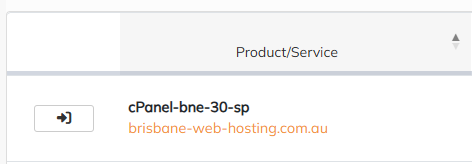
- Click on Services, and then click the arrow for the service you want to check your IP for.
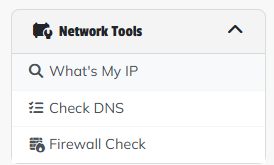
- In the left-hand menu, look for the Network Tools menu and click on Firewall Check
- The tool will now check your IP address in our security system to see if it has been blocked.
If you're not blocked, you will see a green confirmation notice.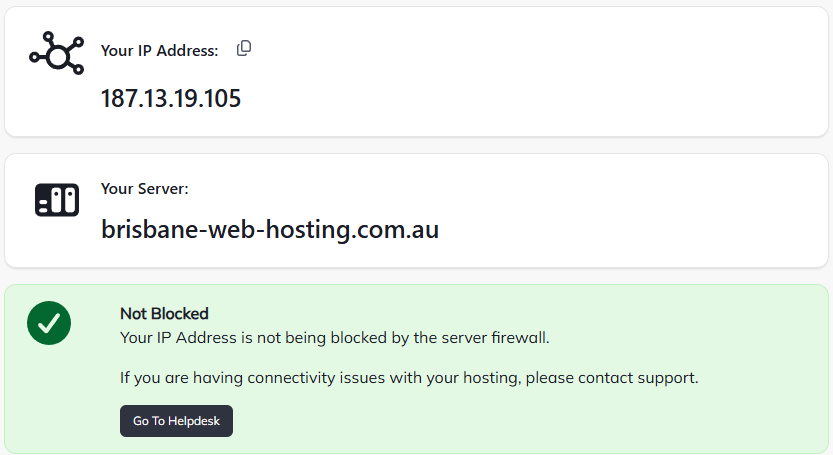
- If your IP has been blocked, you will see a red confirmation notice which also includes some information on why your IP was blocked:
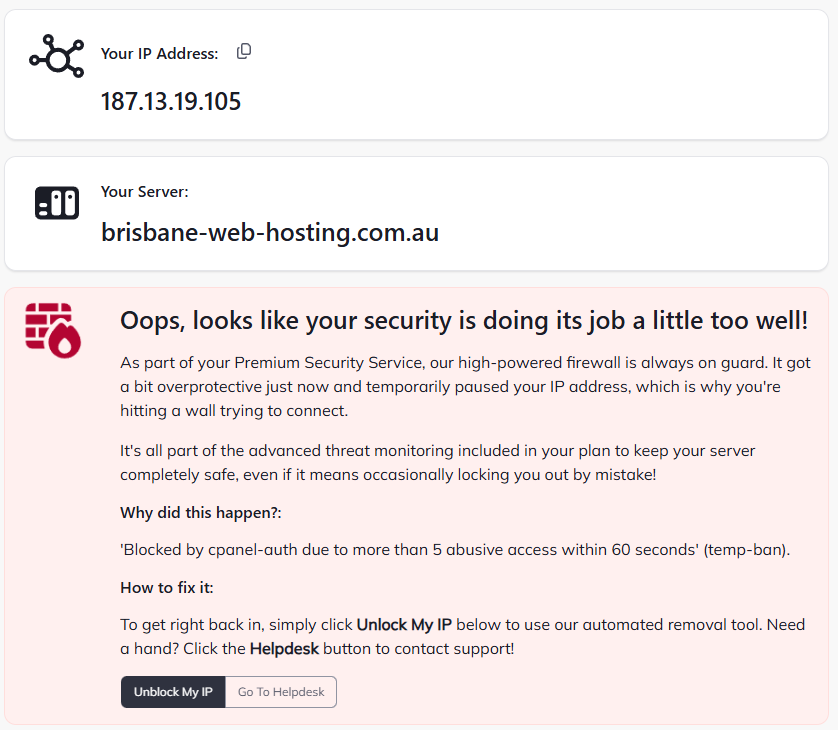
- Click the Unblock My IP button:
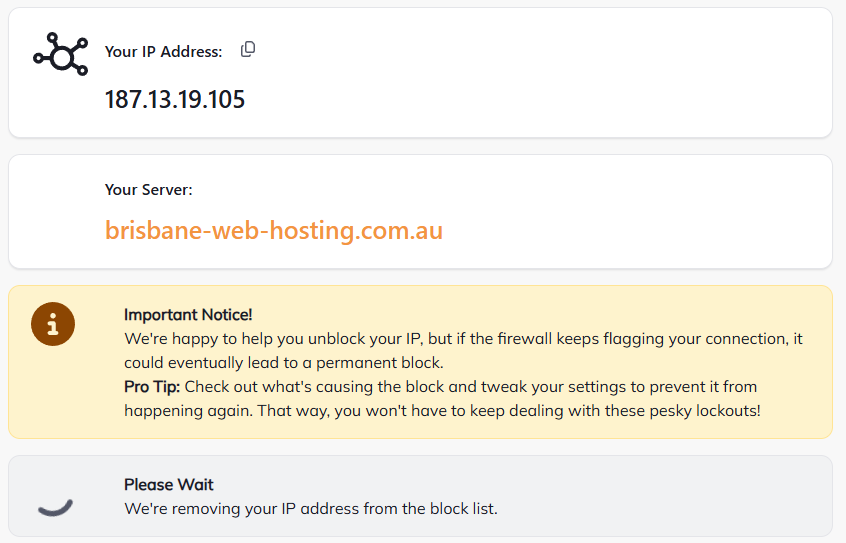
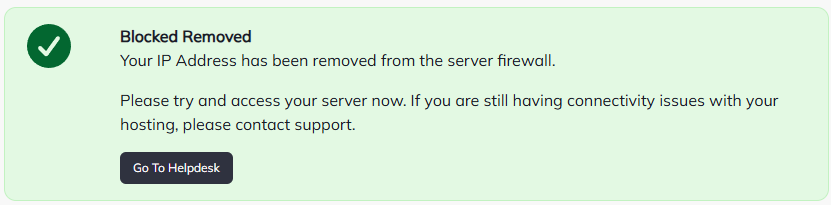
- If your IP was removed successfully, you will see a green confirmation:
Prevent Future Blocks: Proactive Security Tips
To ensure you don't get locked out by our automated firewall in the future, follow these essential preventive steps:
-
Reset Your Password: If you aren't 100% sure of your credentials, don't keep guessing. Reset your password.
-
Update Saved Credentials: After updating a password, remember to update it across all your devices, email clients (like Outlook or Apple Mail), FTP managers, and browser auto-fill settings. Stale passwords saved on background devices are the #1 cause of repeat IP blocks.
-
Double-Check Your Details: Verify that you are using the exact username, port numbers, and incoming/outgoing server settings listed in your account welcome email.
Need Further Assistance?
If you've cleared your IP and are still experiencing access issues, or if you need help verifying your settings, our local Australian support team is here to assist Submit a Ticket