
An email signature is a great way to add a professional touch to your outgoing emails.
Here’s how you can set it up:
-
Log into RoundCube:
- This is usually https://webmail.yourdomainname.
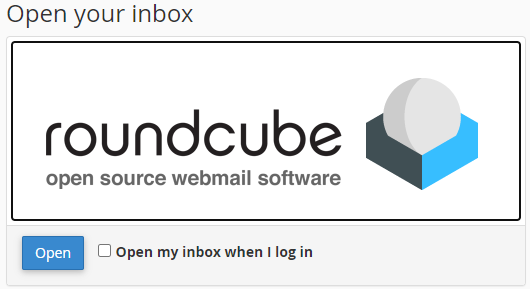
- If you don't have auto open for RoundCube, click on the RoundCube Open button:
-
Access Settings:
- Once in RoundCube, click on the Settings option in the left hand menu:
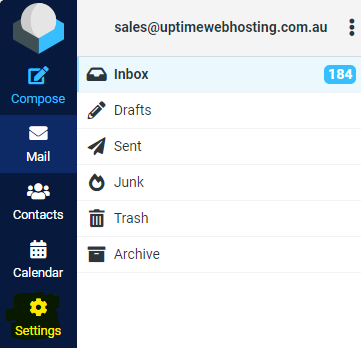
- Once in RoundCube, click on the Settings option in the left hand menu:
-
Navigate to Identities:
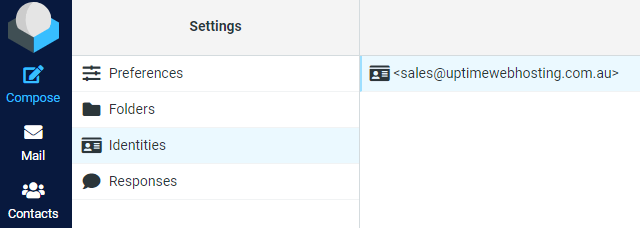
- From the RoundCube Settings screen, locate and click on the Identities tab:
- You’ll see a list of identities. Click on the desired identity (usually there’s only one).
-
Update your Identity and set your signature:
- Fill in your Display Name and optionally your Organization.
- Do NOT change the email address.
- In the Signature box you can create your signature
- Make sure Set Default is left switched on.
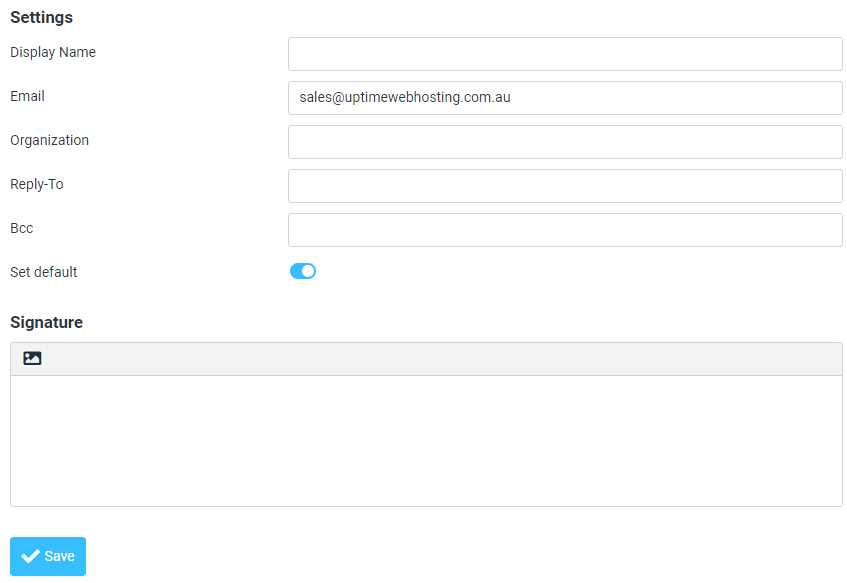
- Click the Save button to save your changes.
-
Enable Display HTML:
- Remember that you’ll need to enable “Display HTML” in the Displaying Messages setting of RoundCube to see your HTML signature.
Your new email signature is ready to go.