
Gatekeepers protect your website and provide security and traffic filtering before traffic even reaches your web server.
Once you have purchased your Blackwall plan, you will need to configure your domain to route traffic through the GateKeeper servers.
If you have purchased a paid Blackwall Firewall Plan, we can set up the DNS for you at no cost. Please let us know by opening a support ticket.
If you are on a free plan or would like to configure your domain yourself, please follow these steps to set up your DNS.
Please note: It may take up to 30 minutes for security to be activated and for the SSL certificate to be issued. Your website will show a security warning until this step is complete. If your website is very active, it's advisable to only set up the Gatekeeper during low-traffic periods.
Retrieve your Gatekeeper settings
- Log in to your UpTime client area and go to your Services
- Click on your Blackwall service
- Click on the settings Icon
- Take note of your Upstream IP address.
- Take note of the three IP addresses for the Gatekeepers
Gatekeeper Sydney: 103.236.163.99 43.224.180.22 112.213.37.240
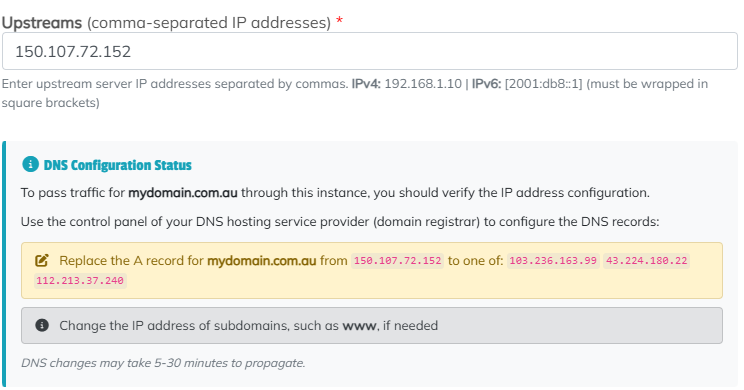
Setting up your DNS for Blackwall Gatekeepers.
The following guide is for cPanel, but other control panels work in the same way.
- Log in to cPanel
- Go to Domains->Zone Editor
- Click on the Manage button, next to your domain
- Find the Filter at the top of the screen and click on A
- You should see an A record for your domain name.
- Now click on the Delete button to remove it.
Make sure you are not deleting any subdomain records. You only want to delete the A record for your top-level domain. - You will now need to create three A records for your domain. One for each of the gatekeepers.
- Click on the Add Record button and select Add "A" record
- Type in your domain name and enter the first Gatekeeper IP address
- Click on Save Record
- Repeat for the second and third Gateway IP addresses.
Important - Check your MX record
Some DNS setups use a CNAME record for email that points to your main domain. Because we have redirected your domain to the Gatekeepers, email will also be directed here, and your inbound mail will stop working.
If you use a third-party mail service like MailChannels, Gmail or Microsoft, you can skip this entire section.
Follow these steps to check and configure your mail settings.
- Log in to cPanel
- Go to Domains->Zone Editor
- Click on the Manage button, next to your domain
- Find the Filter at the top of the screen and click on CNAME
- Look for a CNAME record that starts with mail.
If you don't have one, then jump to step 9 - Click on the Delete button next to your mail.yourdomainname CNAME record
- Click on the Add Record button and select Add "A" record
- Type in mail.yourdomainname and set the Ipv4 Address to your Upstream IP (from step 4 in the Gatekeeper settings section)
- Click on Save Record
- Find the Filter at the top of the screen and click on A
- Check that you have an A record for mail.
- Use the filter again and click on MX
- Ensure your Destination is mail.yourdomainname
Update your Gatekeeper settings
- Log in to your UpTime client area and go to your Services
- Click on your Blackwall service
- Click on the settings Icon
- Ensure Use HTTPS for Upstreams is unticked
- Click on the Save Settings button to confirm you have set up DNS.
- You will see a message under SSL Status that a new SSL Certificate is being provisioned.
- Refresh the screen after a few minutes to check the SSL status.
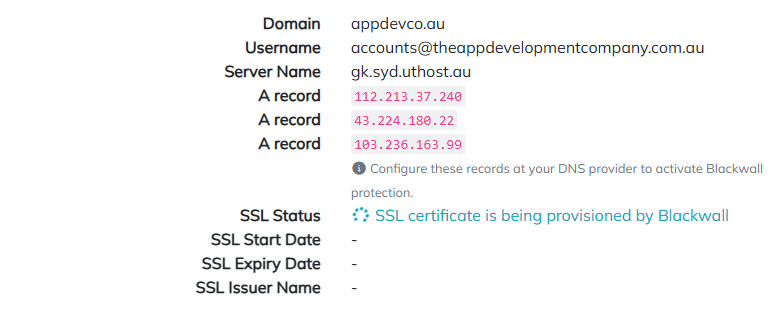
Once the SSL Certificate has been issued, your domain is now active in the Gatekeepers, and you can start monitoring traffic and protecting your website.