
Managing your hosting environment should be clear, efficient, and aligned with your daily workflow. We are excited to announce the arrival of Meridian, the brand-new cPanel interface designed to streamline how you build, launch, and maintain your web presence.
Meridian shifts the focus from navigating a massive grid of technical icons to an intuitive, goal-oriented workflow. Whether you are setting up your first domain, managing professional email addresses, or optimising server performance, Meridian brings it all together in task-focused hubs.
You can toggle between the classic Jupiter theme and the new Meridian theme at any time:
Log in to your cPanel account.
At the top of the screen, you will see the new Try Meridian button. Click this and your interface will refresh immediately into the new layout.
You can switch back to the classic Jupiter theme from Meridian by clicking on the switch back button in the top toolbar:
Instead of searching through endless rows of individual tools, Meridian organises your tools into six clear, goal-driven workspaces:
Websites: Manage domains, DNS records, SSL certificates, WordPress instances, and site builders from a single screen.
Email: Set up mailboxes, forwarders, autoresponders, and deliverability checks without jumping between sub-menus.
Security: Centralise your AutoSSL status, Web Application Firewall (ModSecurity), 2FA setup, SSH keys, and IP blocking.
Performance & Traffic: Monitor bandwidth, track inode usage, review recent error logs, and manage PHP settings in real time.
Files & Backups: Access File Manager, set up FTP/SFTP accounts, and handle manual or automated backups effortlessly.
Databases: Quickly launch phpMyAdmin, set up MySQL/MariaDB databases, and manage database users.
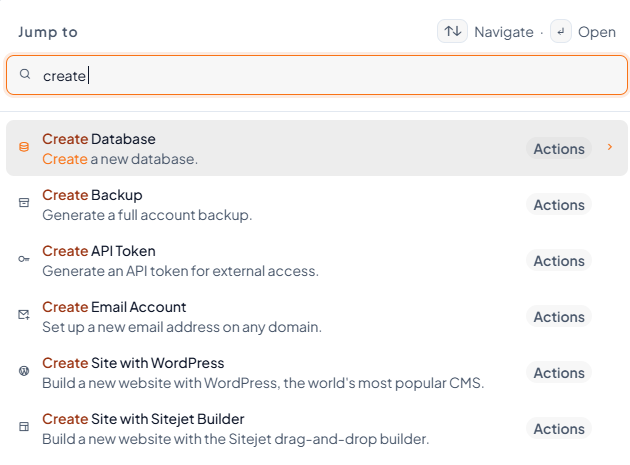
For power users who prefer keyboard efficiency, Meridian includes a fast global search engine. Press Cmd + K (Mac) or Ctrl + K (Windows) anywhere in cPanel to open the Command Palette. Type a command like "Create Email Account" or "Manage SSL" to jump directly to the tool without touching your mouse.
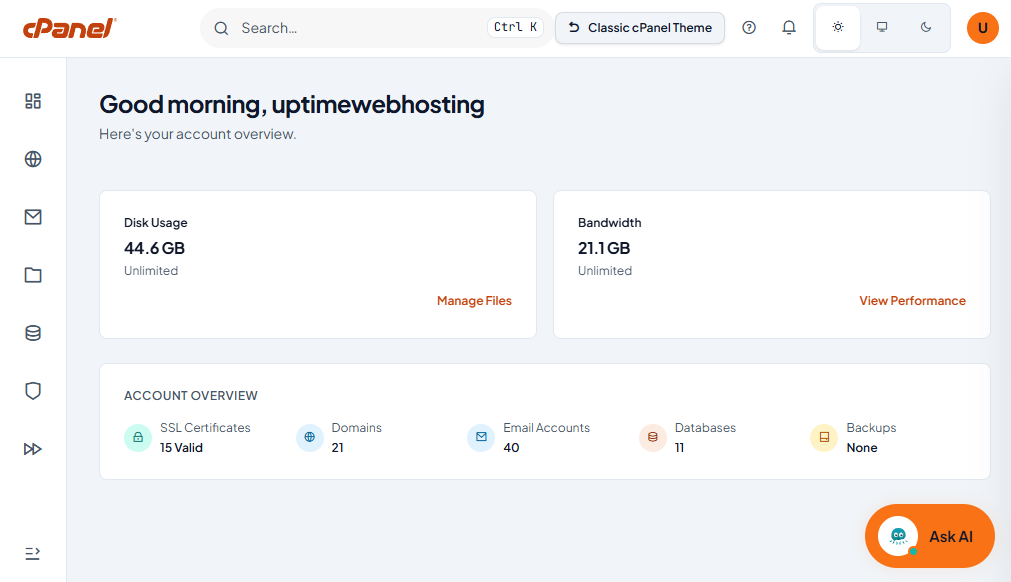
Upon logging in, your main dashboard presents immediate visibility into account status:
Account Health Indicators: Spot expiring SSL certificates or backup warnings instantly.
Suggested Next Actions: Receive recommendations tailored to your setup to ensure your site remains secure and optimised.
Switching to Meridian will not disrupt your hosted services. Your websites, databases, email accounts, and custom server configurations remain 100% active and untouched during the transition.
Master the Keyboard Shortcuts:
Get used to using Ctrl + K or Cmd + K. It is by far the fastest way to complete routine tasks like adding subdomains or creating databases.
Set Your Personalisation Settings:
Visit Account Preferences > Personalisation to customise your primary focus (e.g., Online Store, Developer, Personal Blog). Meridian tailors suggested dashboard actions based on your selection.
Use Light/Dark Mode:
Match your preferred editing style by toggling the display preferences icon in the top header bar.
Check the Action Required Panel:
Make it a habit to check the Action Required widget on your main dashboard to clear pending security or DNS warnings before they affect live users.
Managing your web hosting environment is now even faster with the addition of cPanel's new AI Chat Feature. Acting as an on-demand technical assistant inside your dashboard, the AI Chat is designed to answer administrative queries, walk you through step-by-step configurations, and troubleshoot issues on the fly without forcing you to dig through external documentation or wait in standard support queues.
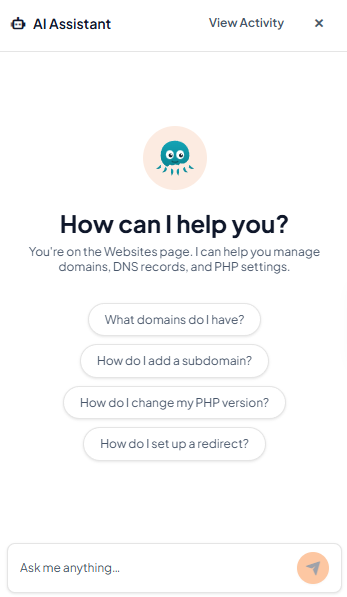
The AI Chat assistant understands the context of your cPanel environment. Instead of searching through user guides, you can simply ask the chat window direct questions to receive instant, targeted answers:
Step-by-Step Instructions: Ask questions like "How do I point a new subdomain to a custom directory?" or "How do I set up custom MX records?" to get exact steps tailored to cPanel.
Error Analysis: Copy and paste obscure server or application error logs directly into the chat to get a quick diagnosis of what went wrong and how to fix it.
Configuration Help: Request syntax or code snippets for .htaccess redirects, custom PHP directives, or environment variable setups.
The AI Chat is integrated directly into the cPanel ecosystem. If you are not sure which menu houses a specific setting, you can ask the assistant to point you in the right direction or generate direct links to the relevant cPanel workspace—whether it's Setup Node.js App, Zone Editor, or AutoSSL.
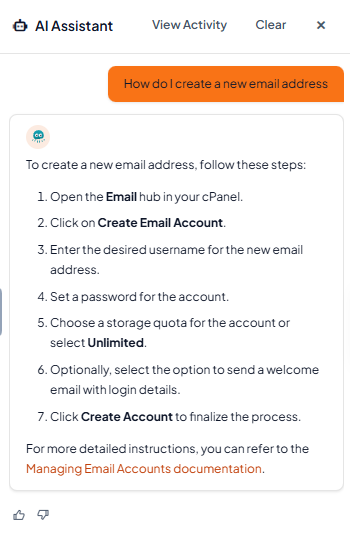
Be Specific with Error Messages: If a script or installation fails, copy the exact error output into the chat box. The AI assistant can isolate whether it is a file permission issue, a missing dependency, or a resource threshold limit.
Use It Alongside the Command Palette: Press Cmd + K (Mac) or Ctrl + K (Windows) to jump between workspaces, and use the AI Chat drawer whenever you need step-by-step guidance while completing complex tasks.
Combine with Self-Management Tools: Use the AI assistant to learn how to fix configuration issues yourself using cPanel’s built-in file and database managers.